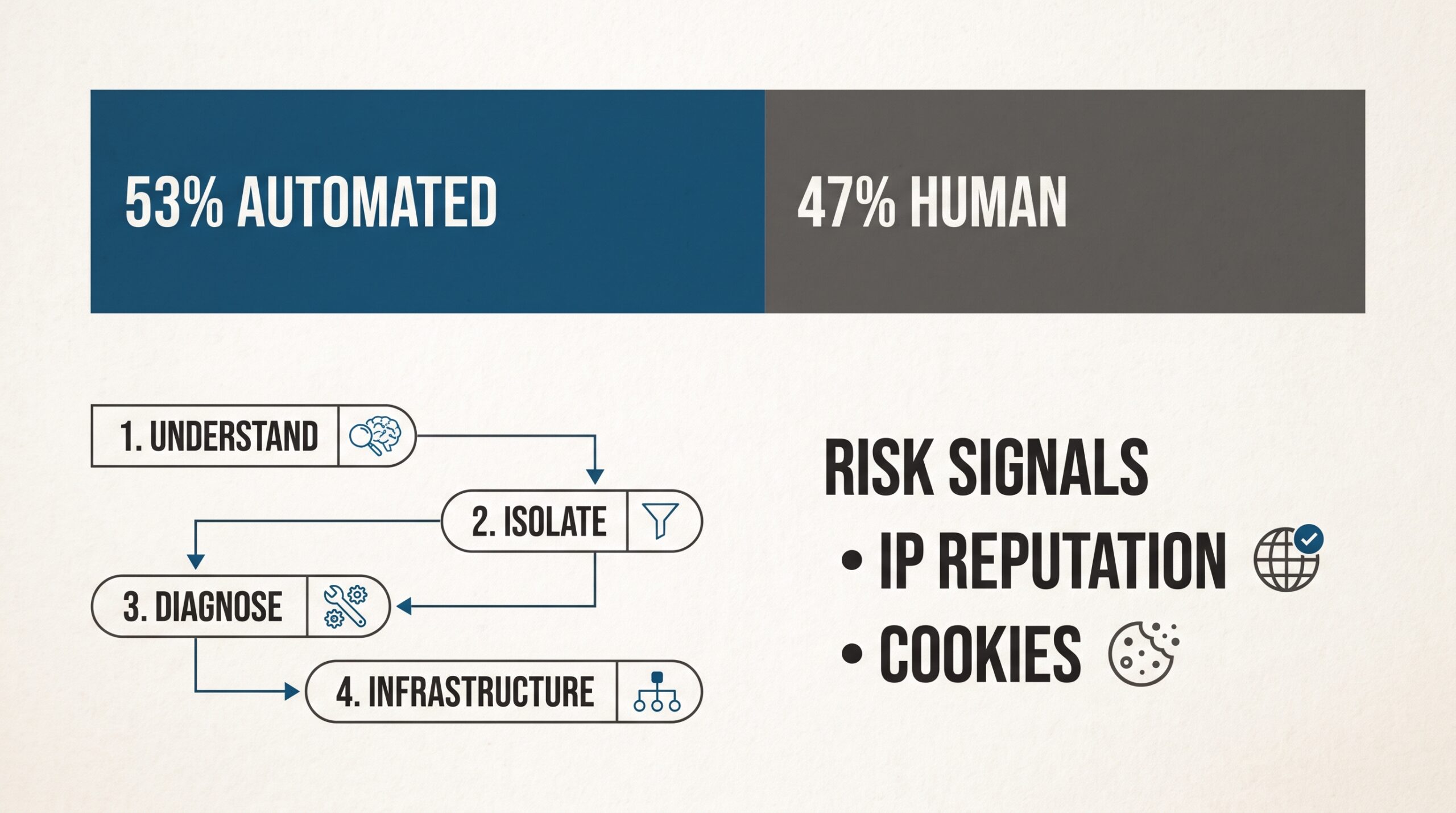
Key Takeaway: Google keeps asking if you’re a robot when its anti-abuse systems cannot confidently tell your traffic apart from automated activity. The most common triggers are a low-trust or shared IP address, a VPN or relay service, unusually high search volume, browser extensions, cleared cookies, or malware. Repeatedly clearing cookies rarely fixes the problem for long, especially in professional workflows. The underlying IP reputation and request behavior usually matter more.
Introduction
If you’ve searched “why does google keep asking if im a robot,” you’re not alone. The “unusual traffic” warning and the “I’m not a robot” checkbox are risk checks, not accusations. They don’t mean you did anything wrong.
Google has good reason to be strict. According to Imperva’s 2026 Bad Bot Report, automated traffic made up more than 53% of all web traffic in 2025, up from 51% the year before. Human activity fell to 47% [7]. When most of the internet’s traffic isn’t human, every ambiguous visitor gets a closer look.
This guide covers two different situations:
- Consumers usually need a browser, device, or security fix.
- Marketers, SEO specialists, and data teams often have an infrastructure problem: an IP range, a VPN, a proxy type, a request rate, or a shared network.
The guide works through four stages:
- Understand what Google evaluates.
- Isolate whether the issue comes from the browser, device, network, or IP.
- Run a safe diagnostic sequence.
- For professional workflows, choose compliant infrastructure.
Solving one checkbox gets you one search. To stop the loop, you need to find the signal that caused the challenge.
How Google’s Bot-Risk Checks Evaluate Your Traffic
Google does not rely on the checkbox alone. It weighs several signals together:
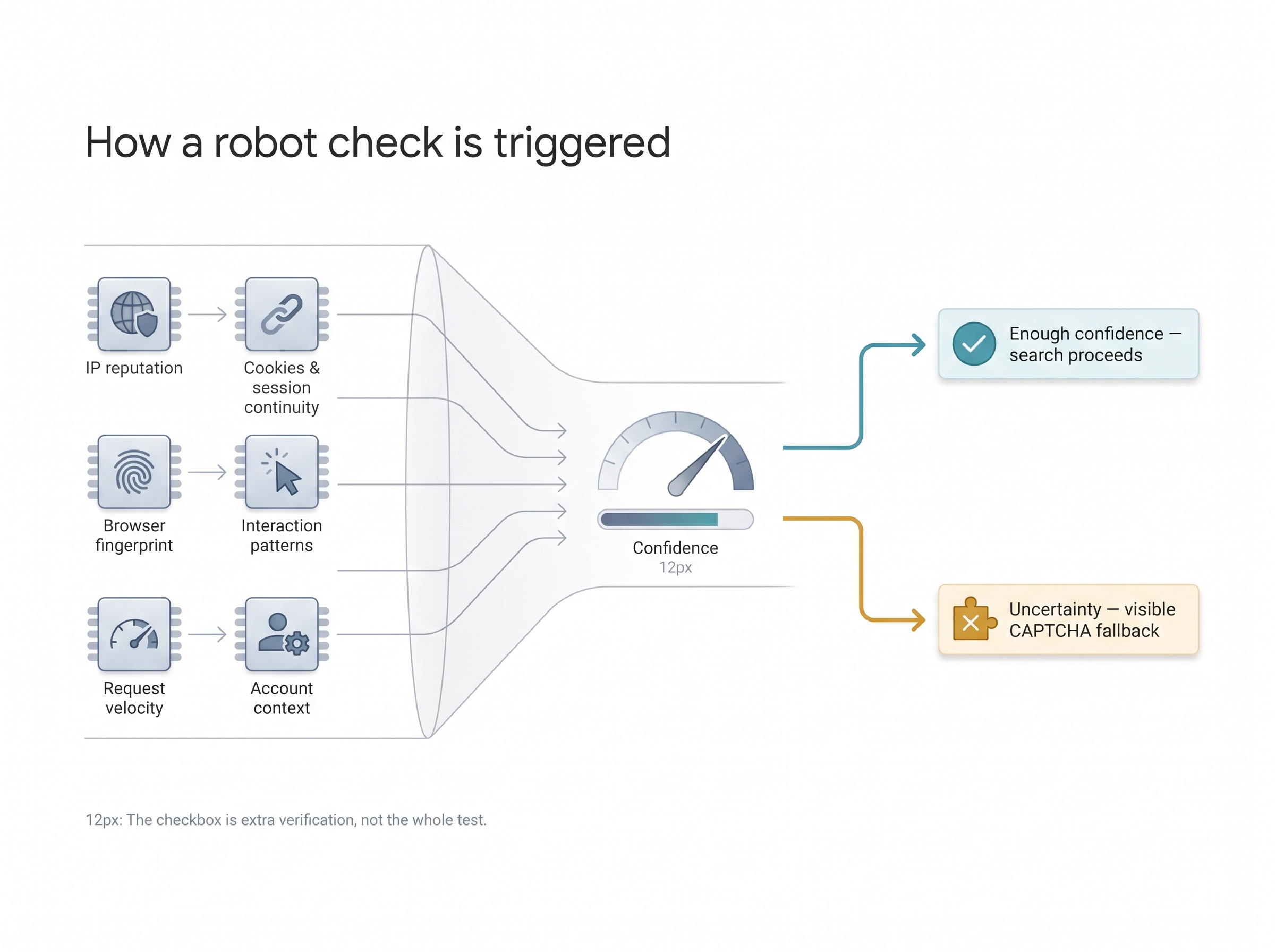
- IP reputation
- Cookies and browser history
- Behavioral patterns and request speed
- Browser fingerprinting
- Account context
A CAPTCHA appears when those signals leave enough uncertainty that Google wants another verification step.
How the CAPTCHA Checkbox Became a Background Risk Assessment
Most advice comes down to “complete the CAPTCHA, clear your cookies, and try again.” That misses how the system works. The checkbox is not a standalone intelligence test.
Modern reCAPTCHA-style systems can assess risk before you click anything. The visible challenge is a fallback for when background signals don’t give enough confidence.
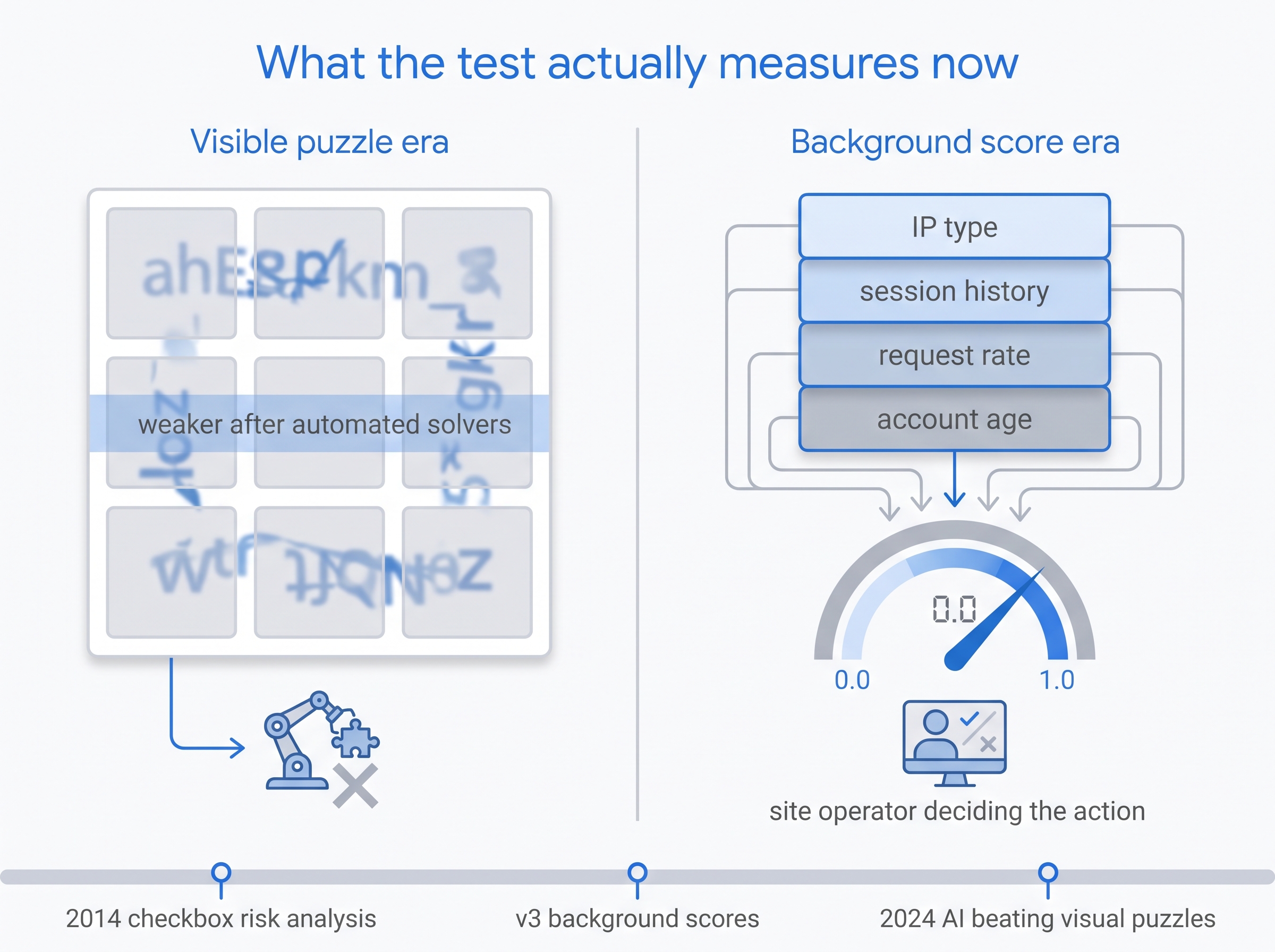
The approach changed in four broad steps:
- Early CAPTCHA systems used text recognition or image puzzles. You proved you were human by solving something machines couldn’t.
- Checkbox-based systems changed the test. Google introduced “No CAPTCHA reCAPTCHA” in 2014. Its developer announcement explained that the risk analysis around the checkbox mattered more than the click itself. A challenge appears when the system cannot confidently classify the user as human.
- Background risk scoring removed the visible test on many sites. reCAPTCHA v3 gives each request a score from 0.0 to 1.0. The site operator then decides what to do with that score, as FriendlyCaptcha’s technical guide describes [2].
- Visual puzzles alone no longer settle the question. In 2024, ETH Zurich researchers reported that a YOLOv8-based system solved 100% of the reCAPTCHA v2 challenges presented during their tests, as summarized by the UNU Campus Computing Centre [6]. That figure applies to the complete solving system, not to the image-recognition model alone. Once machines can beat the puzzles, context and behavior carry more weight.
📊 Why the image puzzle stopped being decisive
ETH Zurich researchers reported a YOLOv8-based system that solved 100% of the reCAPTCHA v2 challenges in their tests—the complete solving pipeline, not the vision model alone. When machines can finish the pictures, Google has to weight IP reputation, cookies, and request behavior more heavily than the click.
Six signals come up again and again:
- IP reputation. Google can consider two things here:
– whether the address belongs to a mobile carrier, household ISP, VPN, data center, public proxy, or Tor exit node
– whether the address has a history of abuse
- Cookies and session continuity. Google can check whether the browser has a normal, ongoing relationship with Google services, or looks like a new stranger on every visit.
- Browser fingerprint consistency. Google can check whether the browser configuration looks unusual, heavily automated, or inconsistent from one request to the next.
- Mouse, scroll, and interaction patterns. Behavior is one signal among many. No credible source claims mouse movement decides the outcome by itself.
– A community explanation on Facebook says Google looks at browser data, mouse movements, and browsing patterns.
– A practitioner breakdown on Medium describes the same logic from the user’s side.
– Treat both as user experience, not as Google’s private formula.
- Request velocity and query patterns. Repeated searches, simultaneous requests, and rank-checking traffic look like automation because, mechanically, they are automation.
- Google account and device context. A signed-in, established account gives Google more context than a fresh, isolated session. It does not guarantee you will skip challenges.
The “I’m not a robot” checkbox is usually not the main test. Google can evaluate your IP reputation, cookies, browser configuration, behavior, and search activity before it shows a challenge. The checkbox or image puzzle is typically an extra step when those background signals aren’t conclusive.
When CAPTCHAs keep repeating, the most persistent signal is often not the browser. It’s the network identity behind the request.
Seven Reasons Google Repeatedly Flags a User or Network
Common advice says to “turn off your VPN because Google dislikes shared IP addresses.” That’s only half right. A shared IP is not bad in itself.
The real question is about risk history. Has the IP address, its network block (autonomous system), or its connection type built up a profile linked to any of these?
- anonymization
- automation
- abuse
- non-human traffic
| Cause | What Google may interpret as risky | Typical symptom | First diagnostic action |
|---|---|---|---|
| VPN or privacy relay | Shared exit IP, anonymizer classification, frequent user changes | CAPTCHA appears right after connecting | Disable the VPN or relay temporarily and retest |
| Datacenter IP address | Hosting-provider ASN or network range linked to automation | Challenges during repeated searches or tool use | Test from a normal mobile or home connection |
| Shared office, campus, hotel, or café network | Another user on the same public IP may have generated suspicious traffic | Several people receive challenges | Compare results on mobile data |
| Search automation or rank tracking | Search volume and timing resemble scripted queries | “Unusual traffic” page during a tool run | Pause jobs, reduce the rate, review Google-compliant alternatives |
| Browser extension or privacy tool conflict | Modified scripts, blocked storage, injected requests, unusual fingerprints | CAPTCHA occurs in one browser only | Disable extensions and test in a clean profile |
| Cleared cookies or new browser profile | No session history or continuity | Prompts return after a privacy cleanup | Allow necessary cookies and JavaScript |
| Malware or compromised router/device | Background requests sent without the user’s knowledge | CAPTCHA persists across searches or devices | Follow the five-step security diagnostic below |
Google’s own unusual traffic help page names these causes:
- malware
- shared networks
- VPNs
- search scrapers
- automated rank-checking tools
Third-party guidance points the same way. TechnologyChecker’s reCAPTCHA guide links repeated challenges to VPNs, proxies, shared networks, cleared cookies, and privacy extensions [3].
IP classification deserves a closer look. Anti-abuse systems can draw on commercial IP-intelligence datasets that sort addresses by anonymizer status and connection type.
VoidMob’s analysis of proxy detection explains that sites often read two datasets together [5]:
- Anonymizer status: Is the address a VPN, public proxy, hosting provider, or Tor exit node?
- Connection type: Is the connection residential, corporate, mobile, or data center?
As a result, the same search can be treated very differently depending on where it appears to come from.
On a shared IP, one person’s behavior can affect everyone else. As ProxySocks5’s community post notes: “Google specifically says another computer using the same IP address may be responsible for the traffic that triggered the warning.”
A caution on wording: Google does not publish every input or weighting in its risk systems. No one can honestly quote you a specific “Google trust score” for an IP type.
Mobile carrier IPs aren’t a magic bypass either. They may be less likely to be blocked wholesale, because they serve many legitimate subscribers. The outcome still depends on four factors:
- IP reputation
- request behavior
- account context
- site policy
A MakeUseOf author describes getting far more challenges while using VPNs and iCloud Private Relay [10]. That’s an anecdote, not a controlled study, but it matches the classification logic above.
The fastest way to find your cause is to change one thing at a time: the device, the browser, or the network.
iPhone, Safari, Apple Private Relay, and Malware Diagnostics
Where the challenges appear tells you where to look.

- Only on your iPhone, not on a computer using the same Wi-Fi: The cause is likely Safari settings, Apple Private Relay, browser storage, or a device-level signal. Your home network is probably not the problem.
- Across browsers and connections: Check for malware or a compromised network before assuming it’s a CAPTCHA glitch.
Apple Private Relay and Safari-Specific CAPTCHA Loops
Generic guides say “update Safari, switch networks, or clear browser data.” They rarely treat Apple Private Relay as its own routing variable.
Private Relay sends Safari traffic through relay infrastructure. That traffic can appear to come from shared or unusual exit addresses, which leads to more verification prompts for some users.
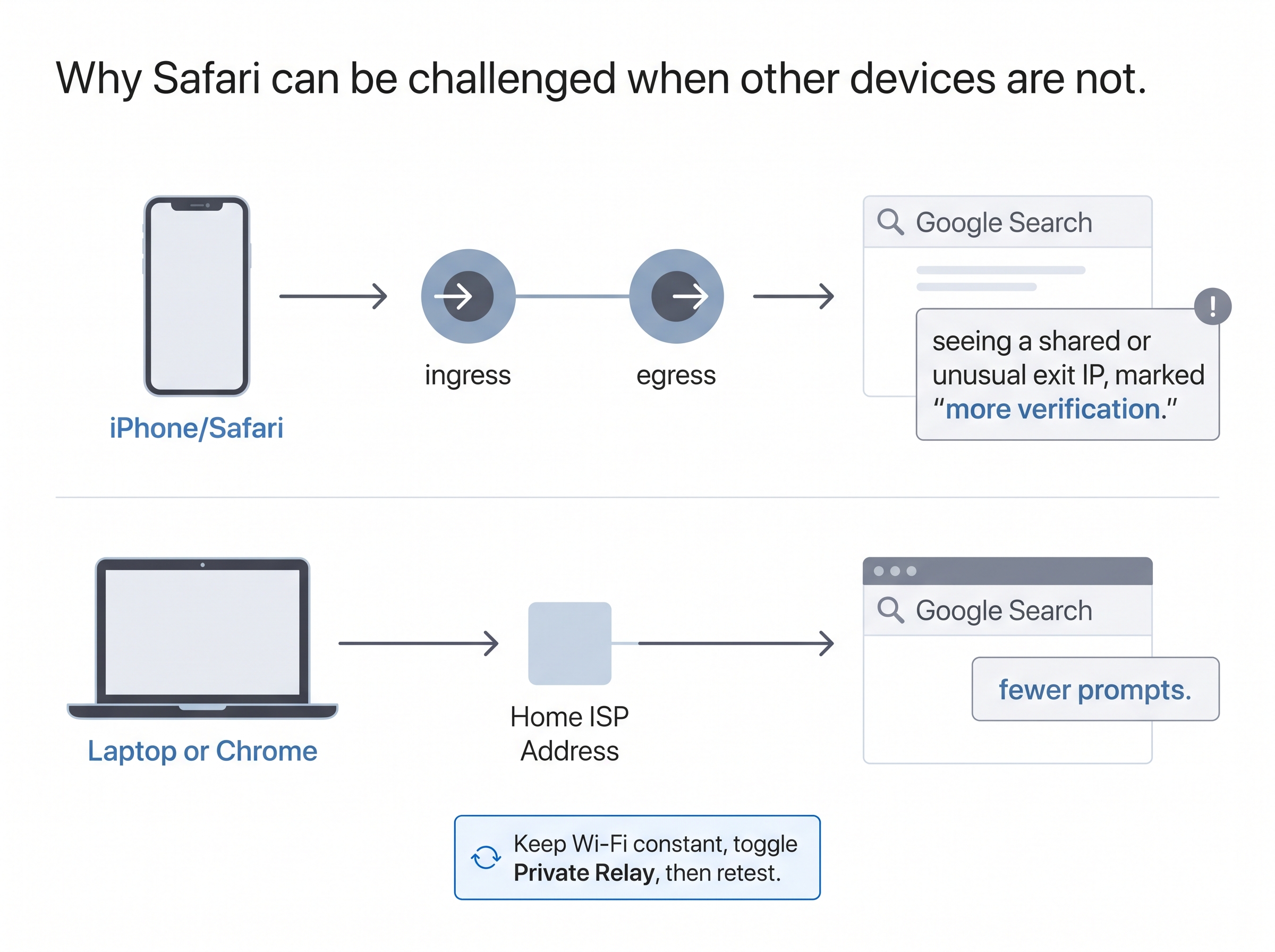
A typical pattern: Google keeps asking for verification on an iPhone, while another device on the same network has no trouble. To isolate the cause, change one thing at a time:
- Stay on the same Wi-Fi connection.
- Compare Safari with another browser, if you have one installed.
- Turn off Private Relay temporarily.
- Retest Google Search.
- Turn Private Relay back on once you know whether it was the deciding factor.
If CAPTCHAs drop with Private Relay off, the relay route is likely adding to the risk signals. That doesn’t make Private Relay unsafe. It simply shows that the routing layer is one of the variables.
Real users report this pattern. A PistonHeads forum user wrote on January 27, 2026: “I’m using an iPhone with Apple Private Relay. This seems to cause google searches to trigger a google captcha style check that I’m actually a human” [9]. One report doesn’t prove cause, but the pattern is worth testing.
To turn off Private Relay on current iOS:
- Go to Settings → Apple Account → iCloud → Private Relay.
- Turn it off temporarily.
- Close and reopen Safari.
- Search for several minutes and watch for prompts.
Menu names change between iOS versions, so confirm the path on your device.
While you’re in Settings, also check these:
- Enable JavaScript.
- Stop clearing cookies on every visit.
- Disable content blockers temporarily.
- Update iOS.
- Test on cellular data versus Wi-Fi.
- Note whether the CAPTCHA appears only in Safari or in every browser.
A contributor in the Chrome Community offers similar advice for CAPTCHAs that appear in one browser only: compare browsers, clear the cache, and disable extensions. That’s community guidance, not official policy, but the isolation logic is sound.
If Google asks whether you’re a robot only in Safari or only on your iPhone, test Apple Private Relay, content blockers, cookies, and cellular data before changing your whole network. A device-specific CAPTCHA loop usually points to a browser or routing difference, not a Wi-Fi problem.
Five Steps to Separate a Dirty IP From Malware or a Compromised Network
“Run an antivirus scan” is the standard advice, but it’s incomplete. You need a process that tells apart three kinds of problems:
- browser-level problems
- IP reputation problems
- suspicious traffic from malware or another device on your network
| Step | Test | What the result suggests | Next action |
|---|---|---|---|
| 1 | Search on mobile data instead of Wi-Fi | Works on mobile data but not Wi-Fi | The home, office, or shared-network IP may be the issue |
| 2 | Use a different browser or a clean browser profile | Works in the other browser | Extensions, cache, cookies, or browser configuration may be involved |
| 3 | Disable VPNs, relays, and proxy extensions | CAPTCHA frequency drops | Routing or IP classification is likely contributing |
| 4 | Run a reputable security scan and review extensions and apps | Threat or unknown extension found | Remove it, reset browser settings, and recheck |
| 5 | Restart and secure the router | Several devices still trigger challenges | Change the router password, update firmware, check connected devices, and contact your ISP if needed |
A CAPTCHA alone does not prove you have malware. However, frequent warnings across several devices, browsers, and sessions do justify a security review. Google’s unusual-traffic guidance lists malware alongside shared networks, VPNs, and automated searching, so it is a real possibility.
⚠️ A checkbox is not a malware diagnosis
One Google prompt does not mean your laptop is infected. Escalate to a security review only when the same warnings follow you across clean browsers, devices, and both Wi-Fi and cellular. Reboots also will not repair a bad IP reputation or a neighbor on the same public address.
Rebooting rarely solves the problem. In a Google Search Community thread from October 2026, a user reports unusual-traffic warnings on a Windows laptop “every time when making search queries within Google (especially after reboot)” [1]. A restart does nothing for IP reputation or a network-wide issue.
An AnandTech forum thread shows the same gap. The user had security software installed, yet the prompts continued because “requests from network appear to be in violation of the terms of service.” Testing the network matters as much as scanning the device.
Personal troubleshooting has limits, though. Sometimes traffic looks automated because the workflow behind it really is automated.
Why Legitimate SEO, Ad-Verification, and Data Workflows Need Better IP Infrastructure
SEO teams, ad-verification specialists, and data scientists often find that clearing cookies or resetting the browser won’t stop Google’s CAPTCHA prompts. The reason is that the workflow itself resembles automated searching.
When the job requires repeated, simultaneous, or location-specific requests, evasion is not the answer. The responsible answer has three parts:
- compliant architecture
- conservative request rates
- a suitable network identity
Mobile Carrier IPs, CGNAT, and Responsible Professional Workflows
The usual tips don’t address tool-driven volume. Professional workflows generate repeated searches, location tests, ad checks, and data requests that look like automation because they are automation.
Why Google flags tool-driven requests. Google’s unusual-traffic guidance explicitly names two categories:
- search scrapers
- software that sends searches to check how websites rank
That doesn’t make every professional tool malicious. It means this traffic pattern falls into an automated-risk category by design.
Why datacenter and consumer VPN IPs get challenged more. IP-intelligence databases associate hosting-provider ranges and shared VPN exits with automation or anonymization [5].
Coronium’s comparison scores VPNs at 15/100 for Google SERP scraping, noting that “Google heavily CAPTCHAs VPN IPs and returns inconsistent results” [4]. Treat this as one provider’s benchmark, not an independently verified Google score.
How CGNAT changes the context of mobile IPs. Carrier-Grade Network Address Translation (CGNAT) lets mobile operators place many legitimate subscribers behind a smaller pool of public IP addresses. Blocking a carrier IP outright risks cutting off thousands of real customers. For that reason, platforms tend to handle these ranges more carefully.
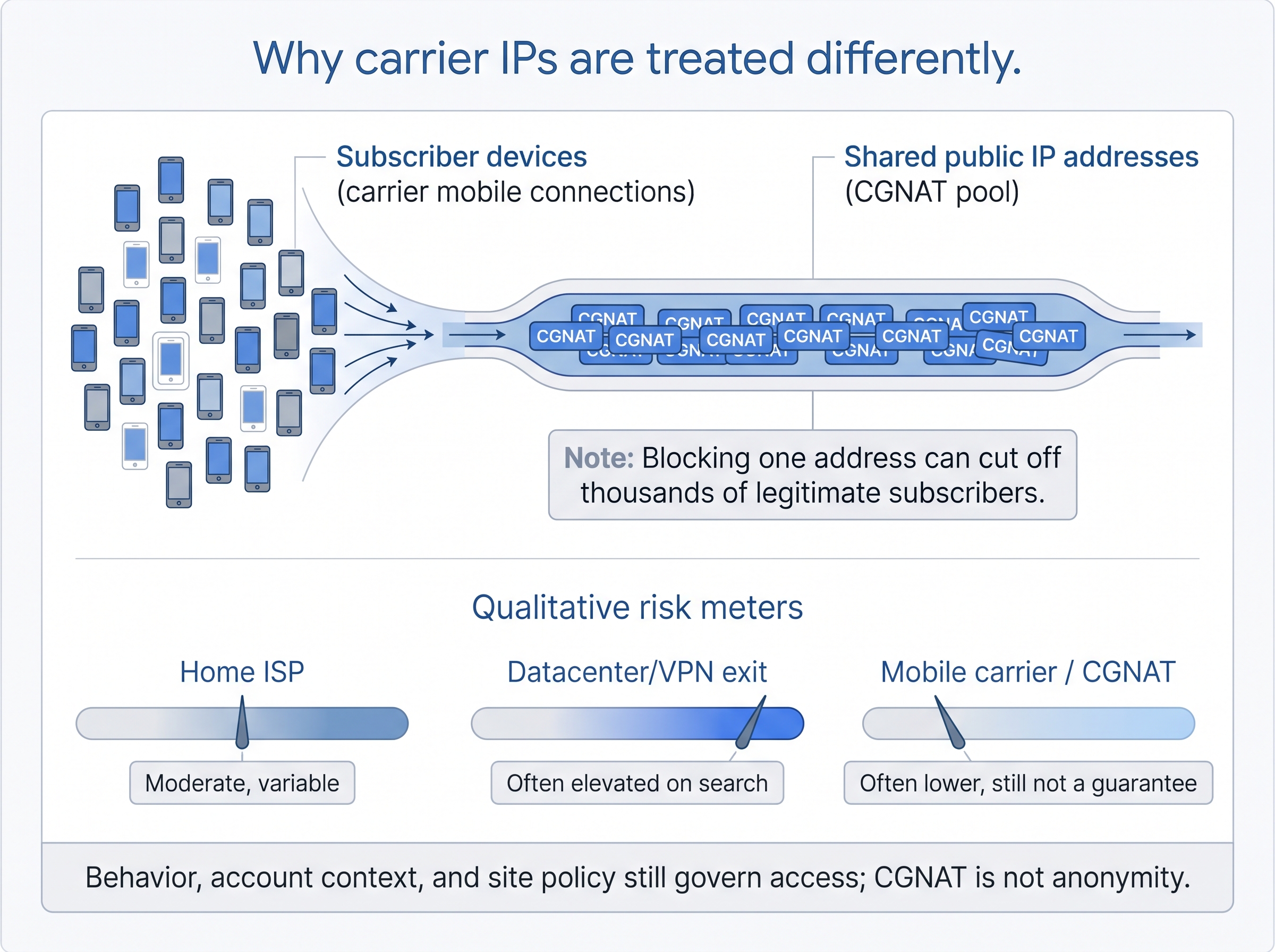
A vendor-published guide on GitHub claims mobile proxies achieve “95%+ trust scores while datacenter proxies sit at 40-50%” for this reason [8]. That is an industry benchmark from a proxy provider, not a Google measurement.
CGNAT is not a guarantee. On its own, it does not:
- provide anonymity
- prevent detection
- make any activity compliant
What responsible teams should look for in a provider:
- Real mobile connectivity. The provider should offer carrier-backed mobile connections, not “mobile” labels applied to other IP types.
- Matching coverage. Country and city coverage should match the market you’re verifying.
- Clear controls and support. Look for session and rotation controls, plus documented uptime and support.
- Clear rules. The provider should have a clear acceptable-use policy and should encourage conservative request rates that follow target-site rules.
- No overpromising. Claims of “undetectable” access or guaranteed CAPTCHA avoidance are a red flag.
| Connection type | Common classification signal | Potential CAPTCHA risk | Appropriate use case | Important limitation |
|---|---|---|---|---|
| Home/residential ISP | Consumer broadband | Moderate and variable | Normal browsing and consumer research | Shared household reputation can still matter |
| Consumer VPN | Shared VPN exit or anonymizer signal | Often elevated | Privacy use where the service permits it | Shared exit history can trigger challenges |
| Datacenter proxy | Hosting ASN / cloud infrastructure | Often elevated for search-heavy work | Server-side workloads where accepted | Heavily scrutinized on search and social platforms |
| Mobile carrier proxy | Mobile carrier / CGNAT context | Often lower in carrier-like use, but variable | Authorized geo-sensitive verification and research | Not a guarantee; behavior and policy still govern access |
Some teams need authentic Mexican or Spanish mobile connectivity for authorized market research, ad verification, and social media operations. For them, infrastructure choices matter more than browser hygiene.
ProxyServer.tech offers 4G LTE mobile proxy infrastructure built on physical SIM cards, with IP rotation over carrier networks. If your team runs compliant, location-sensitive workflows, review ProxyServer.tech’s 4G mobile proxy options and request an infrastructure review before you scale.
Limitations, Alternatives, and When to Seek Professional Help
Google does not publish a complete formula for its CAPTCHA decisions. No provider or guide can promise that prompts will disappear permanently.
Use approved routes first. When they exist, use official APIs, licensed data providers, or platform-approved tools.
Know where the line is. Never use proxies, automation, or device changes to:
⚠️ Infrastructure is not a bypass kit
Use official APIs and licensed data sources whenever they exist. Do not rotate IPs, devices, or automation to dodge access controls, invent accounts, collect private data, or break a platform’s terms. “Undetectable” or “guaranteed no CAPTCHA” claims are a red flag, not a feature.
- bypass access controls
- create fraudulent accounts
- collect private data
- break a platform’s terms
This guide is general technical information, not legal or security advice. If you’re unsure whether a workflow complies with a platform’s terms or local data-protection law, consult qualified counsel.
Get expert help when needed. If warnings continue across clean devices and trusted networks, contact your ISP, your IT administrator, or a qualified cybersecurity professional.
Frequently Asked Questions About Google Robot Checks
Why is Google flagging me as a bot?
Google flags traffic as bot-like when your IP, browser, behavior, or search pattern resembles automated activity. Automated traffic exceeded 53% of web traffic in 2025 [7], so ambiguous signals get extra scrutiny. Common triggers include:
- VPNs
- shared networks
- repeated searches
- browser extensions
- cleared cookies
- suspicious traffic from another device on your network
Why does Google say “I’m not a robot” or “unusual traffic”?
It means Google saw traffic from your network that it couldn’t confidently classify as normal human activity. Possible causes include:
- a shared IP
- a VPN or Private Relay
- automated SEO tools
- malware
- unusually frequent searches
Test another connection and another browser to isolate the cause.
Why is Google forcing me to do CAPTCHAs on every search?
Repeated CAPTCHAs usually mean a risk signal is carrying over between searches. Clearing cookies may help if the cause is in the browser. It won’t fix these causes:
- an IP reputation issue
- a VPN exit
- a shared office network
- an automated request pattern
Start by comparing Wi-Fi with mobile data.
How do I stop Safari from asking whether I’m a robot?
First, check whether the problem is limited to Safari or affects the whole network. Then:
- Disable content blockers temporarily.
- Confirm JavaScript is on.
- Avoid clearing all cookies repeatedly.
- Compare Safari with another browser.
- On iPhone, turn off Apple Private Relay temporarily and test again.
How do I remove Google’s “I am not a robot” prompt?
No setting permanently removes Google’s verification system. Instead, remove the trigger:
- Stop using a problematic VPN or relay.
- Disable suspicious extensions.
- Scan for malware.
- Cut back on automated searches.
- Move away from an IP with a poor reputation.
Professional workflows may need better network infrastructure.
Is Google hijacking my Safari browser when it keeps showing CAPTCHAs?
No. A Google CAPTCHA alone does not mean Safari has been hijacked. Look for other warning signs:
- Safari redirects unexpectedly.
- Unknown extensions appear.
- Your search engine changes without your input.
- Safari behaves oddly on many sites.
If you see any of these, review installed profiles and extensions, run a security scan, and update the device.
Conclusion
Google keeps asking if you’re a robot because its systems see enough uncertainty in your IP, browser, device, behavior, or network to require verification. Bots generated more than half of all traffic in 2025 [7], so that threshold is easier to cross than it used to be.
To stop the loop, isolate the signal in this order:
- Compare Wi-Fi with mobile data.
- Compare browsers.
- Disable VPNs and relays.
- Test Apple Private Relay.
- Scan for malware.
If the cause is a professional search, scraping, or verification workflow, review your infrastructure rather than your cookies.
Fewer CAPTCHAs should come from legitimate, policy-aware configuration, not from attempts to defeat security controls. If your team needs authentic Mexican or Spanish mobile connectivity for compliant ad verification, SEO research, or public-data workflows, review ProxyServer.tech’s mobile proxy options before scaling.
About the Author
ProxyServer.tech Editorial Team. This guide was produced by the ProxyServer.tech editorial team, covering mobile proxy infrastructure, IP classification, and compliant data workflows.
Transparency Statement
ProxyServer.tech sells 4G LTE mobile proxy infrastructure based on physical SIM cards with IP rotation and has a commercial interest in the options discussed here. Vendor benchmarks cited in this guide come from third-party providers and are labeled as such. Forum and community posts are cited as user experience, not as official Google policy.
References
[1] Non Stop Unusual Traffic Warnings From Google – Google Search Community
[3] Companies Using reCAPTCHA in 2026: Full Customer List & Insights – TechnologyChecker.io
[4] Residential Proxy vs VPN Comparison | Coronium.io
[5] Proxy Detected: What It Means and How to Fix It (2026) | VoidMob Blog
[6] Why CAPTCHAs Are Losing Ground to AI – UNU Campus Computing Centre
[7] Bad Bot Report 2026: Bots in the Agentic Age | Imperva
1 thought on “Why Google Keeps Asking If You’re a Robot”